We recently came across an article from Common Sense Media explaining that parents can’t switch off Google’s AI Search, it immediately caught our attention.
The article explained that Google doesn’t currently provide an official setting to disable AI Overviews and suggested a couple of ways parents could make searches safer, such as selecting the Web tab to display traditional search results instead of AI-generated answers. While that advice is technically correct, we wanted to know if there was more parents could do.
Rather than stopping there, we decided to test the different options myself to see what actually happened in practice. After spending time experimenting with different settings, we discovered that there are additional workarounds that weren’t mentioned in the article. Although Google still doesn’t offer a simple ‘Turn AI Off’ button, there are ways to significantly reduce, or in some cases hide AI Overviews from everyday searching.
In this article we will walk you through everything that was tested, explain what worked, what didn’t, and help you decide which option is right for your family.
Method 1: Using Google’s Web Tab
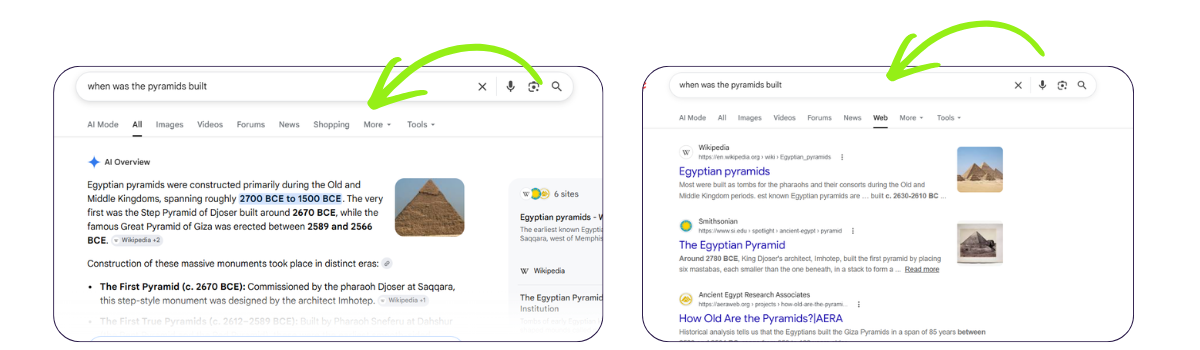
The first recommendation from Common Sense Media was to use Google’s Web tab. Instead of viewing Google’s default search results, which often include AI Overviews at the top of the page, selecting Web displays a more traditional list of website results.
When we tested this, it worked exactly as described. The AI Overview disappeared, leaving only standard web links. However, we quickly noticed one important limitation. The Web tab only applies to that search session. The AI option remains available, and a child can simply switch back to the standard search view or start a new search where AI Overviews appear again.
In other words, while the Web tab is a useful way to avoid AI-generated answers temporarily, it isn’t a permanent solution for parents who want to remove AI Overviews from their child’s everyday browsing experience.
Method 2: Making Web Search the Default
After testing the Web tab, we wondered if there was a way to make Google always search in Web mode without having to click it every single time.
After some research, we found a workaround that allows you create a custom search engine inside Chrome and set it as your default search provider.
Here’s how we did it
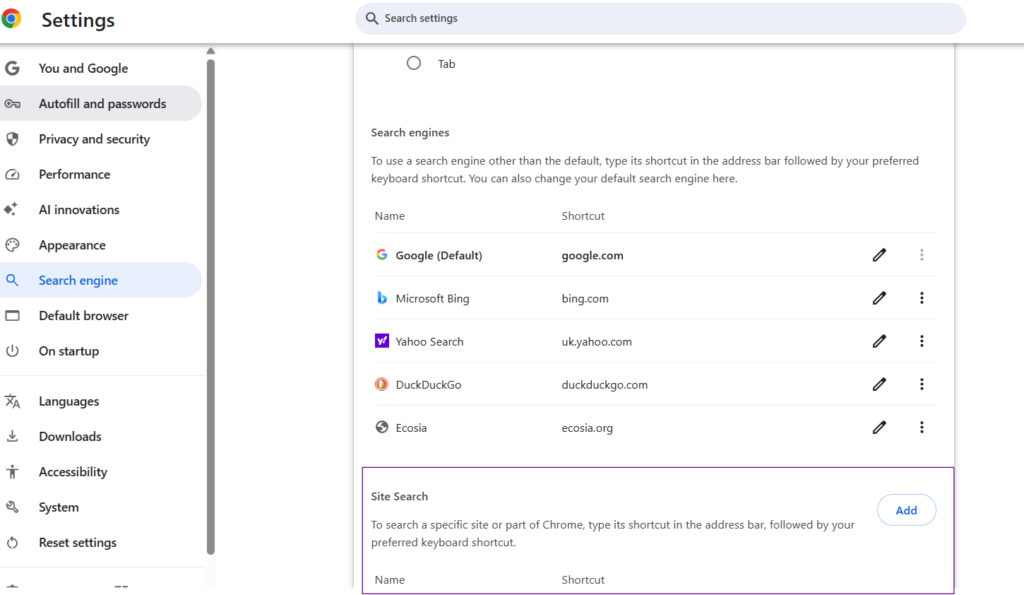
- Open Chrome Settings.
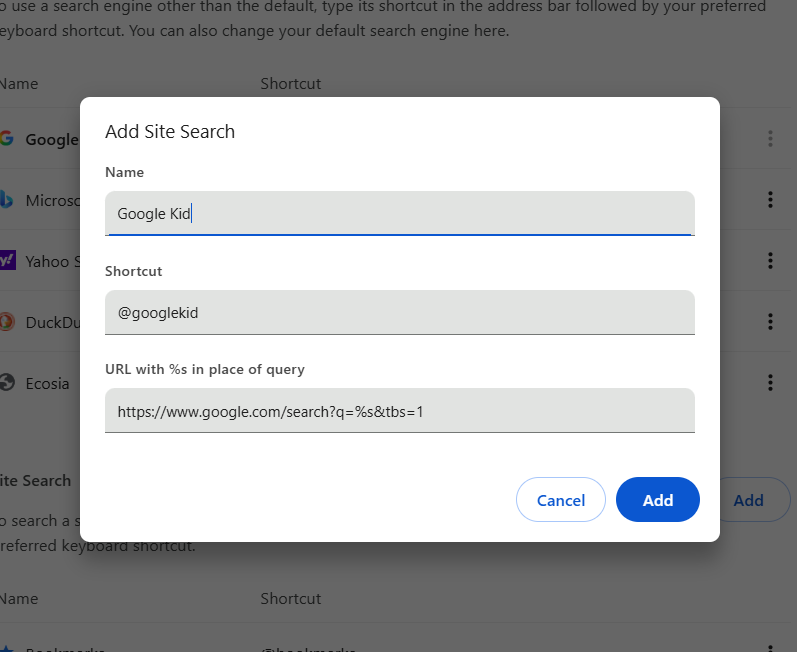
- Go to Search Engine → Manage search engines and site search.
- Scroll down to Site Search and click Add.
- Enter the following details:
- Search engine: Google Kids (you can call it anything you like)
- Shortcut: @kids (again, this can be anything)
- URL: https://www.google.com/search?q=%s&udm=14](https://www.google.com/search?q=%s&udm=14
The important part is the tbs=1 at the end of the URL. During testing, we found this forced Google to use Web results instead of showing AI Overviews, while still keeping useful search features such as calculator results, weather, and dictionary definitions.
Once saved, we clicked the three dots beside my new search engine and selected ‘Make default’.
The result
This worked much better than simply clicking the Web tab every time. Whenever a new Chrome session started and we searched for something, it automatically loaded Web results instead of Google’s AI Overview.
However, there still remained one limitation. The AI tab was still visible at the top of the page. That means a curious child could simply click AI and access Google’s AI-generated answers whenever they wanted.
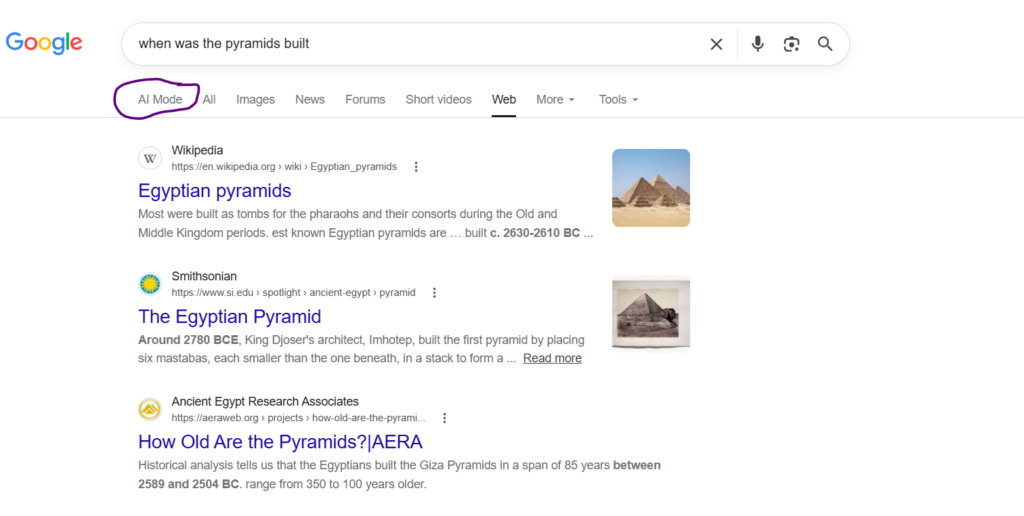
So while this is a much better workaround than Method 1, it still isn’t a complete solution if your goal is to remove AI from your child’s browsing experience altogether.
Method 3: Using a Browser Extension
At this point, we wanted to see if there was a way to remove the AI option altogether. We searched the Chrome Web Store for extensions designed to hide Google’s AI Overviews and came across one called Hide Google AI Overviews.
Before installing it, we checked a few things that are always worth considering when downloading browser extensions:
- It had over 100,000 users.
- It had a strong user rating.
- It is open source, meaning its code is publicly available for anyone to inspect.
- According to its Chrome Web Store listing, it does not collect your data.
After installing the extension, it took just a few seconds to activate.
The result
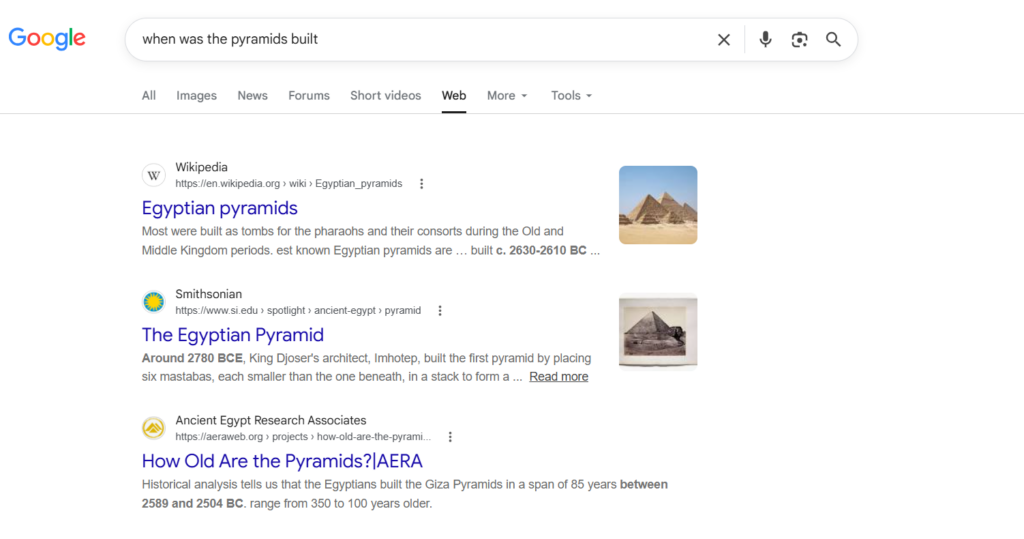
During testing, the AI Overview disappeared completely from Google Search. Unlike the previous methods, we could no longer see the AI tab or AI-generated answers appearing in my searches. This was the closest thing to an ‘off switch’ that we found.
A few things to keep in mind
This isn’t an official Google feature. It’s a third-party browser extension, which means it relies on continued support from its developer and could stop working if Google changes how AI Overviews are displayed in the future. If you decide to use any browser extension, it’s always worth reviewing the permissions, reading recent reviews, and making sure you’re comfortable installing it.
At the time of writing, however, this was the most effective workaround we found for parents who want to remove Google’s AI Overviews from Chrome while we wait for Google to introduce an official parental control or disable option.